QUESTION IMAGE
Question
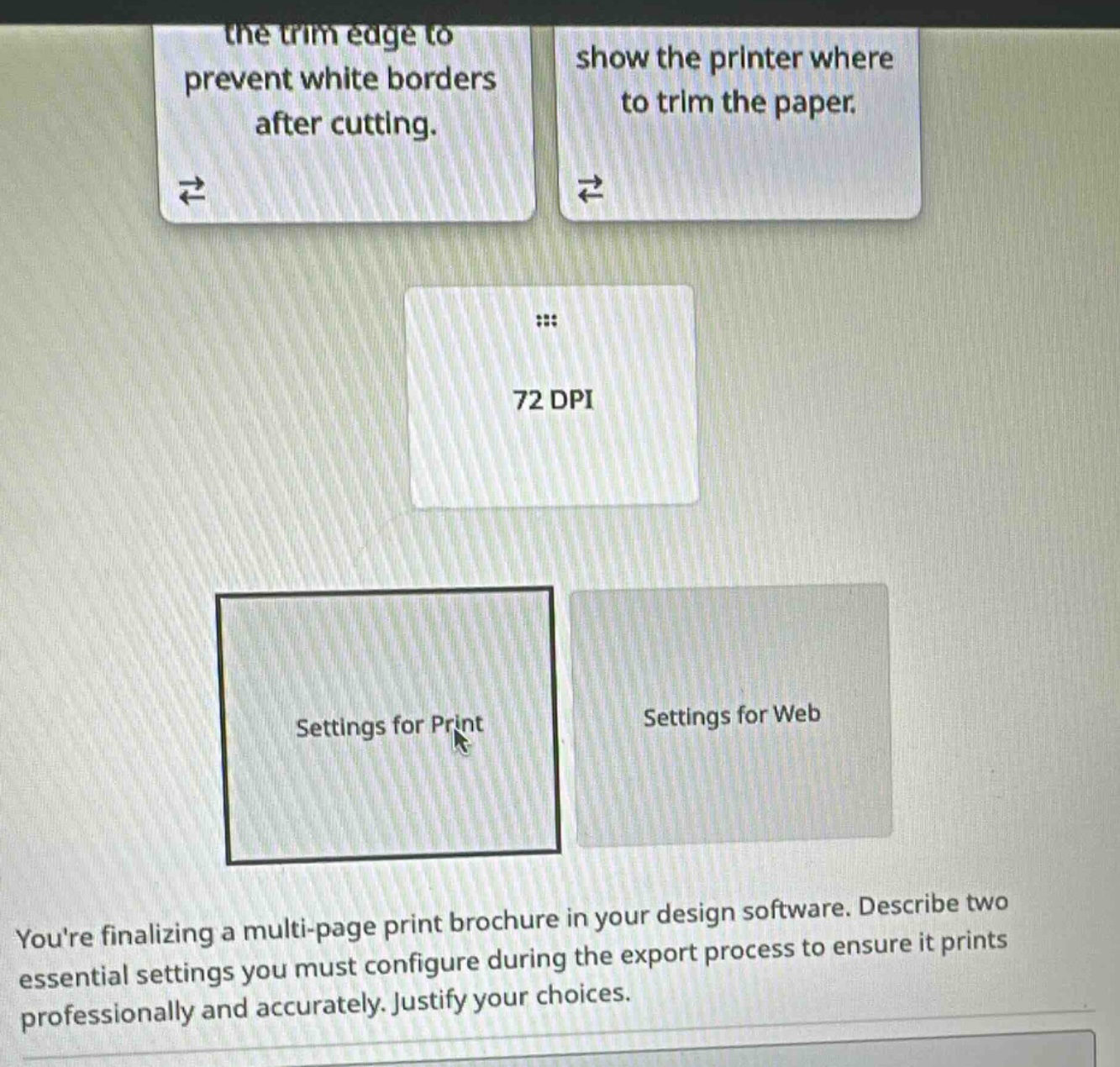
the trim edge to prevent white borders after cutting.
show the printer where to trim the paper.
72 dpi
settings for print
settings for web
youre finalizing a multi-page print brochure in your design software. describe two essential settings you must configure during the export process to ensure it prints professionally and accurately. justify your choices.
🆕 New Concept Discovered: Print vs. Web Design Specifications
Understanding bleed, crop marks, and resolution requirements.
Step 1: Identify the first essential print setting (Bleed)
To ensure a professional print without unwanted white borders along the edges after cutting, you must configure the Bleed settings.
- Justification: Bleed extends the artwork slightly beyond the final trim size. When the printed paper is cut, slight shifts in the cutting machine can occur. Having a bleed ensures that the color or image goes all the way to the edge of the finished piece rather than leaving a thin white line.
Step 2: Identify the second essential print setting (Crop Marks)
To ensure the printer knows exactly where to cut the physical paper down to its final size, you must enable Crop Marks (or Trim Marks) during export.
- Justification: Crop marks are thin lines printed in the corners of the sheet that indicate the precise boundaries of the final document size, guiding the print shop during the trimming process.
Step 3: Address the incorrect options shown in the image
- 72 DPI: This is a low-resolution setting suitable only for digital screens (Settings for Web). Professional printing requires a high resolution, typically 300 DPI (or PPI), to prevent the images and text from appearing blurry or pixelated.

Snap & solve any problem in the app
Get step-by-step solutions on Sovi AI
Photo-based solutions with guided steps
Explore more problems and detailed explanations
The two essential settings you must configure during the export process for a professional print brochure are:
- Bleed: This extends your design elements slightly beyond the final trim line to prevent thin white borders from appearing if the paper shifts slightly during cutting.
- Crop Marks (Trim Marks): These lines print in the corners of the sheet to show the printer exactly where to cut the paper to achieve the correct final dimensions.
(Note: 72 DPI is a web-only setting; professional printing requires a high resolution of 300 DPI).