QUESTION IMAGE
Question
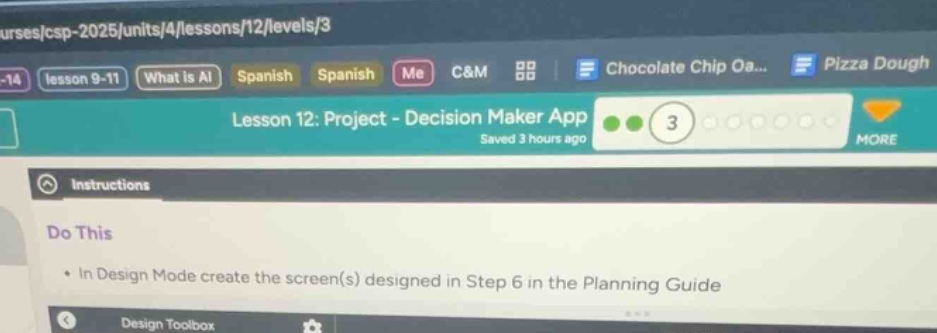
lesson 12: project - decision maker app
instructions
do this
- in design mode create the screen(s) designed in step 6 in the planning guide
Identify the task
Using the Code.org App Lab knowledge point:
The instruction asks to switch to Design Mode and build the user interface screens designed in Step 6 of your Planning Guide.
Translate planning to design
Using the App Architecture knowledge point:
- Identify all UI elements (buttons, labels, text inputs, images) from your Step 6 sketch.
- Drag and drop these elements onto your screen in App Lab.
- Assign clear, descriptive IDs to each element (e.g.,
startButton,quoteLabel) for easy coding later.
Set up screen properties
- Choose a theme or set background colors to match your design.
- Ensure font sizes and alignments make the text easy to read.

Snap & solve any problem in the app
Get step-by-step solutions on Sovi AI
Photo-based solutions with guided steps
Explore more problems and detailed explanations
To complete this step in your Decision Maker App project:
- Switch to Design Mode: Click the "Design" tab above the mobile screen workspace in Code.org App Lab.
- Recreate Your Screens: Look at the sketches you drew in Step 6 of your Planning Guide. Drag elements like Buttons, Labels, Text Inputs, and Images from the Design Toolbox onto your screen.
- Assign Clear IDs: Give every interactive element a meaningful ID (for example, use
submitButtoninstead ofbutton1anddecisionOutputinstead oflabel1). This makes writing your code much easier in the next steps!