QUESTION IMAGE
Question
confirmation records
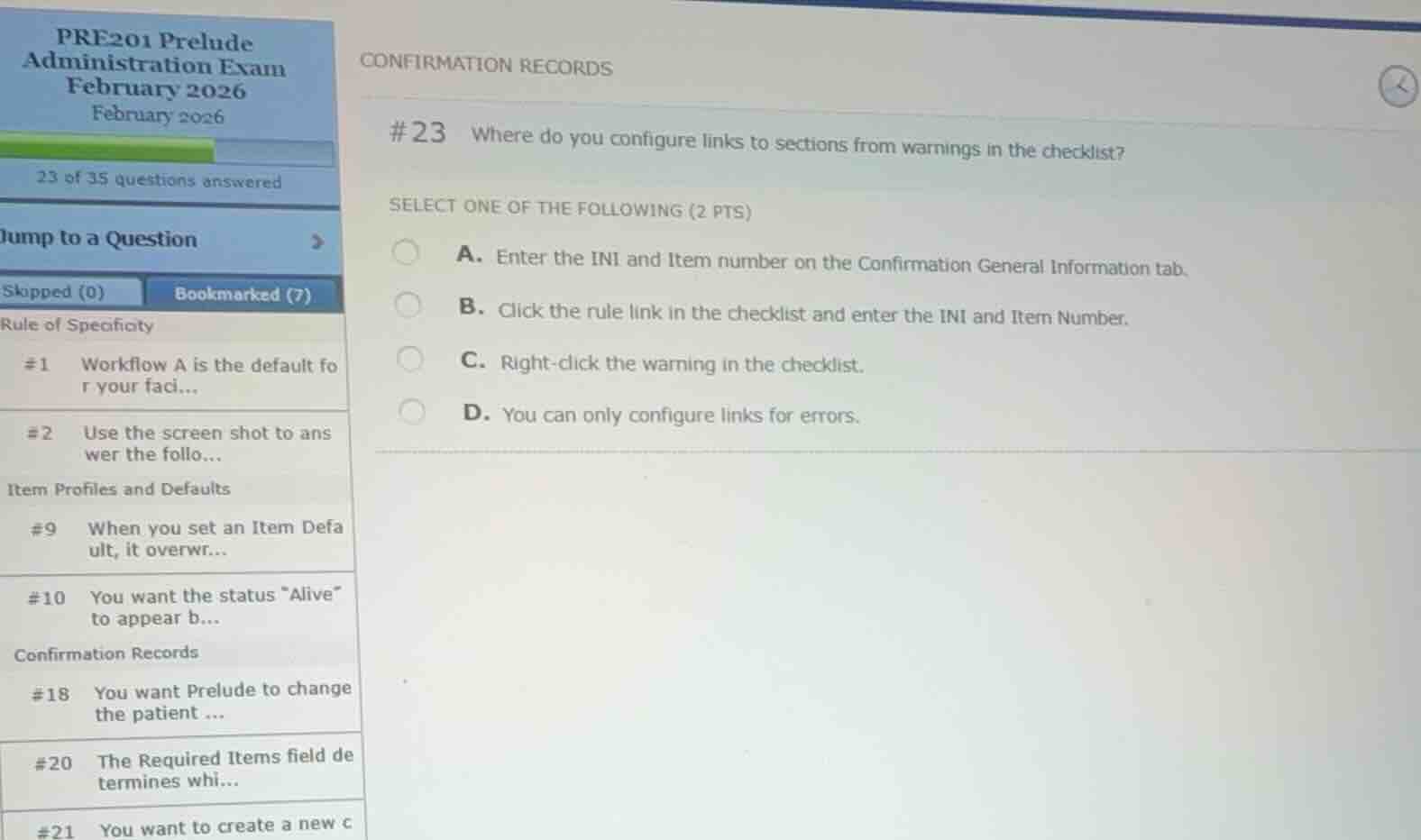
#23 where do you configure links to sections from warnings in the checklist?
select one of the following (2 pts)
a. enter the ini and item number on the confirmation general information tab.
b. click the rule link in the checklist and enter the ini and item number.
c. right-click the warning in the checklist.
d. you can only configure links for errors.
Identify the configuration location for warning links
In Epic Prelude administration, confirmation records (HFL) are used to configure validation rules, errors, and warnings that appear in the registration checklist. To make a warning interactive so that clicking it takes the user directly to the relevant field or section in the navigator, you must define the target database item. This is done by entering the database INI and Item number on the Confirmation General Information tab of the confirmation record.
Evaluate the given options
- Option A correctly states that you enter the INI and Item number on the Confirmation General Information tab of the confirmation record.
- Option B is incorrect because you do not configure this by clicking a link inside the checklist itself.
- Option C is incorrect because right-clicking the warning in the checklist is an end-user action, not a configuration step.
- Option D is incorrect because links can be configured for both errors and warnings.

Snap & solve any problem in the app
Get step-by-step solutions on Sovi AI
Photo-based solutions with guided steps
Explore more problems and detailed explanations
- A. Enter the INI and Item number on the Confirmation General Information tab. (Correct answer)
- B. Click the rule link in the checklist and enter the INI and Item Number.
- C. Right-click the warning in the checklist.
- D. You can only configure links for errors.