QUESTION IMAGE
Question
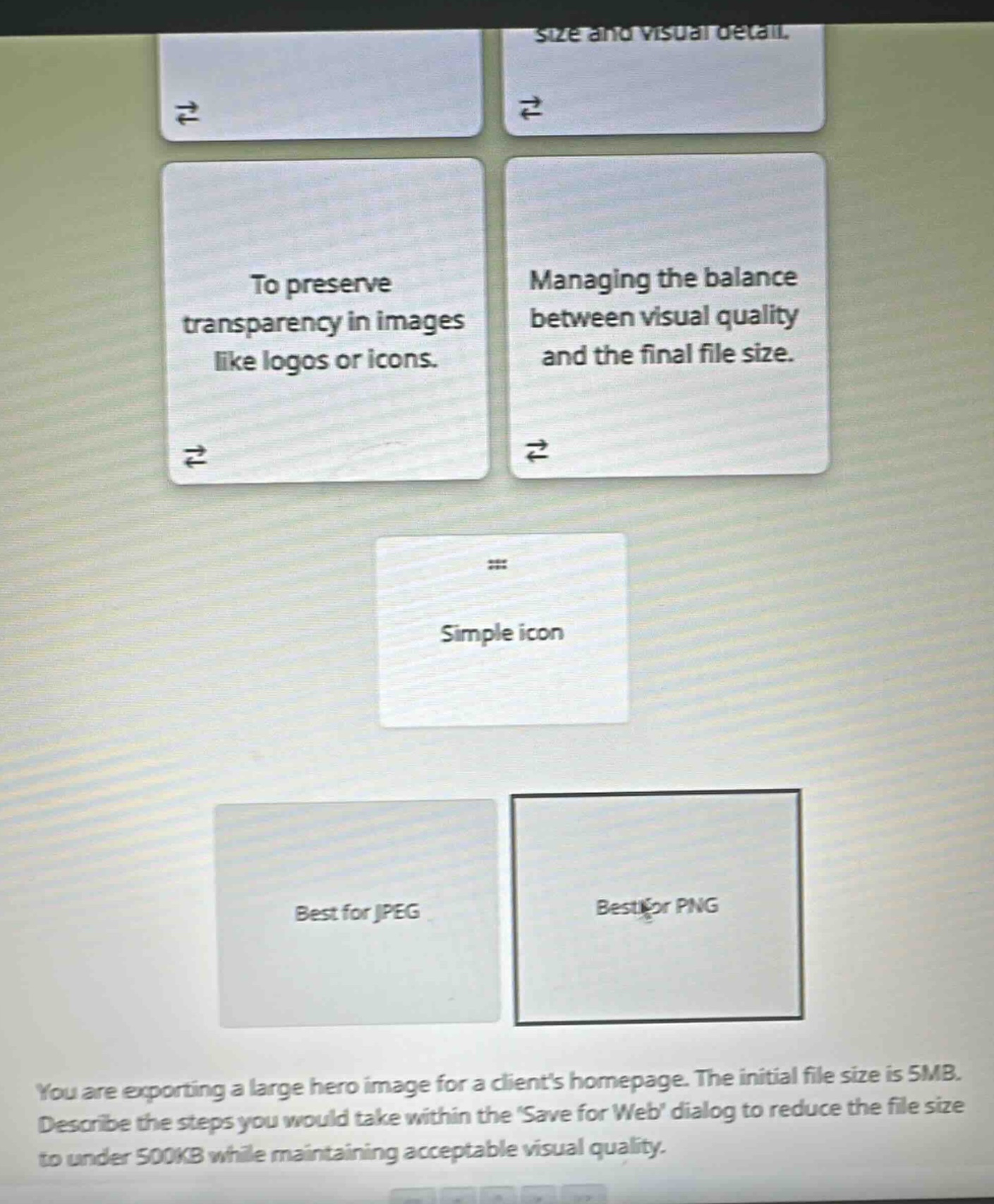
you are exporting a large hero image for a clients homepage. the initial file size is 5mb. describe the steps you would take within the save for web dialog to reduce the file size to under 500kb while maintaining acceptable visual quality.
🆕 New Concept Discovered: Image Optimization and File Formats
Choosing the right format and settings to balance quality and file size.
Step 1: Classify the "Simple icon" card
A simple icon typically consists of solid colors, sharp edges, and often requires a transparent background so it can sit cleanly on top of different website themes.
- PNG (Portable Network Graphics) is a lossless format that supports transparency and is ideal for sharp edges, text, and simple graphics like logos or icons.
- JPEG (Joint Photographic Experts Group) is a lossy format designed for complex photographic images with smooth gradients, and it does not support transparency.
Therefore, "Simple icon" belongs in the Best for PNG category.
Step 2: Optimize the large hero image in 'Save for Web'
To reduce a large \(5\text{ MB}\) hero image to under \(500\text{ KB}\) while maintaining acceptable visual quality, follow these steps in the Photoshop "Save for Web" dialog:
- Select the appropriate file format: Choose JPEG (High or Very High preset) because hero images are typically photographic or complex, and JPEG offers the best compression-to-quality ratio for photos.
- Adjust the Quality slider: Lower the Quality percentage (typically to a range between \(60\%\) and \(80\%\)). This significantly reduces file size with minimal visible loss in quality.
- Resize the Image Dimensions: If the physical pixel dimensions (width and height) are larger than necessary for web display (e.g., wider than \(1920\text{ px}\)), scale down the width and height in the "Image Size" section of the dialog.
- Preview and Save: Monitor the estimated file size displayed in the bottom-left corner of the preview window to ensure it drops below \(500\text{ KB}\), then click Save.

Snap & solve any problem in the app
Get step-by-step solutions on Sovi AI
Photo-based solutions with guided steps
Explore more problems and detailed explanations
Part 1: Card Sorting
- Simple icon $
ightarrow$ Best for PNG
---
Part 2: Steps to Reduce Hero Image File Size
- Choose JPEG Format: Set the file format dropdown to JPEG (optimized for photographic hero images).
- Lower the Quality: Adjust the Quality slider down to a range of 60% – 80% (High or Very High) to compress the image data.
- Resize Dimensions: Scale down the pixel dimensions (e.g., to a standard web width like \(1920\text{ px}\)) in the Image Size panel.
- Verify and Export: Check the estimated file size in the bottom-left preview corner to ensure it is under 500KB, then click Save.