QUESTION IMAGE
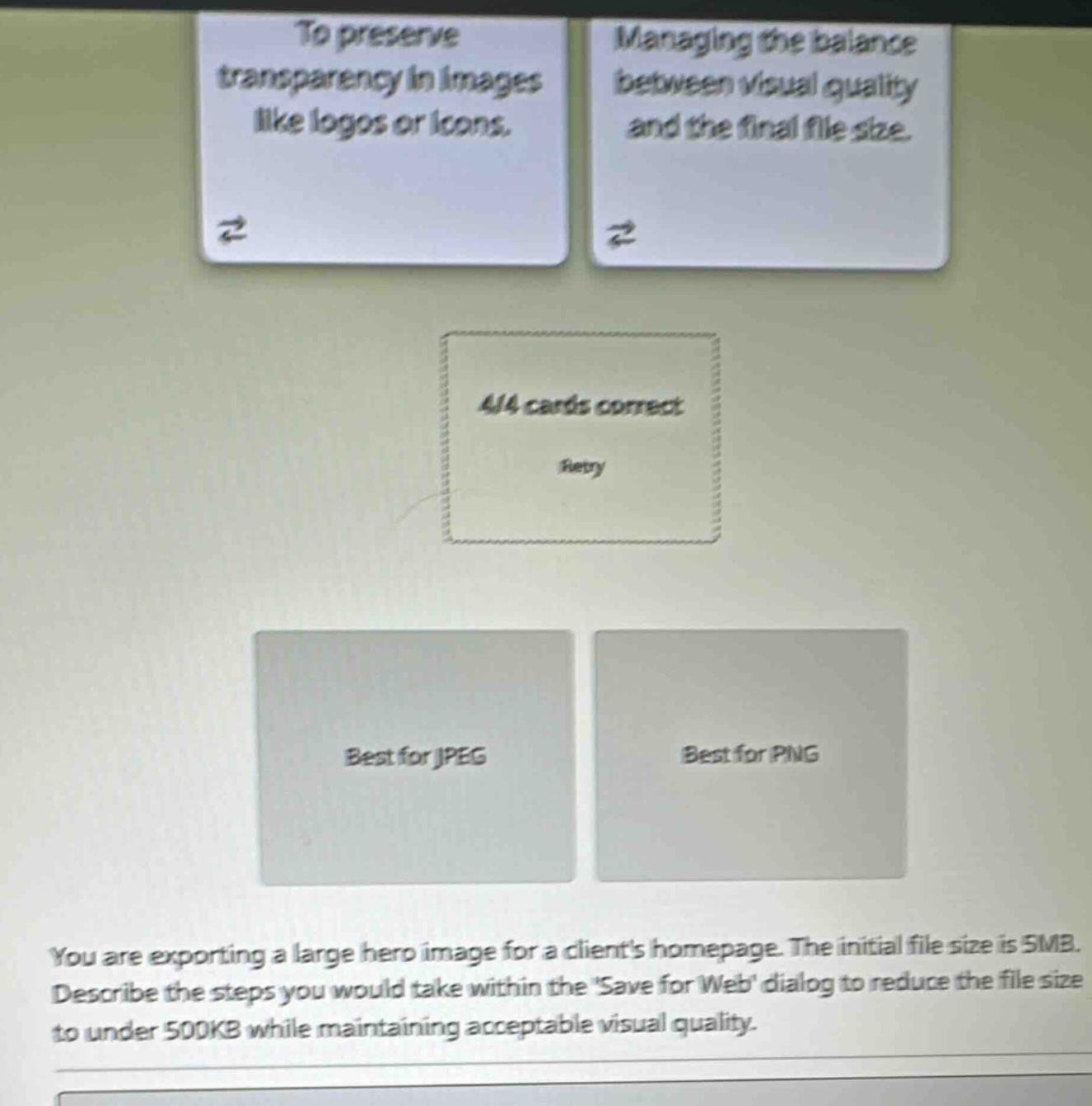
Question
you are exporting a large hero image for a clients homepage. the initial file size is 5mb. describe the steps you would take within the save for web dialog to reduce the file size to under 500kb while maintaining acceptable visual quality.
🆕 New Concept Discovered: Image Optimization for Web
Choosing formats and compression to balance quality and file size.
Step 1: Select the Appropriate File Format
For a large hero image (typically a photograph or a detailed graphic), JPEG is the best format. It allows for lossy compression, which significantly reduces file size while maintaining acceptable visual quality for complex images. In the "Save for Web" dialog, set the file format dropdown to JPEG.
Step 2: Adjust the Quality Settings
Locate the Quality slider or dropdown (usually set to Maximum, Very High, High, Medium, or Low).
- Start by lowering the quality to High (around 60%).
- Check the estimated file size displayed in the bottom-left corner of the preview window.
- If the file size is still above 500KB, gradually decrease the quality slider (down to Medium, or around 40-50%) while visually inspecting the preview image for compression artifacts (like blockiness or color banding) to ensure acceptable visual quality.
Step 3: Resize the Image Dimensions
Hero images do not need to be larger than standard desktop resolutions (typically 1920 pixels wide).
- Go to the Image Size section within the dialog.
- If the width is excessively large, reduce it to an appropriate web width (e.g., 1920px or 1600px) and ensure the aspect ratio is constrained. This drastically reduces the overall pixel count and file size.
Step 4: Optimize Metadata and Color Profile
- Set the Metadata dropdown to None or Copyright Only to strip unnecessary camera details (EXIF data), which saves extra kilobytes.
- Ensure Convert to sRGB is checked so the colors display accurately and consistently across different web browsers.
Step 5: Save and Export
Once the preview window shows an estimated file size of under 500KB and the image still looks sharp and clear, click Save to export the optimized image.

Snap & solve any problem in the app
Get step-by-step solutions on Sovi AI
Photo-based solutions with guided steps
Explore more problems and detailed explanations
- Select JPEG format in the "Save for Web" dialog, as it is best suited for photographic hero images.
- Reduce the Quality setting (aim for a range of 40% to 60%) while monitoring the live preview to ensure the image remains visually acceptable.
- Resize the image dimensions (e.g., scale down to a standard web width like 1920px) in the Image Size panel to reduce pixel volume.
- Strip metadata by setting it to "None" to remove unnecessary file overhead.
- Verify the estimated file size in the bottom-left corner is under 500KB, then click Save.