QUESTION IMAGE
Question
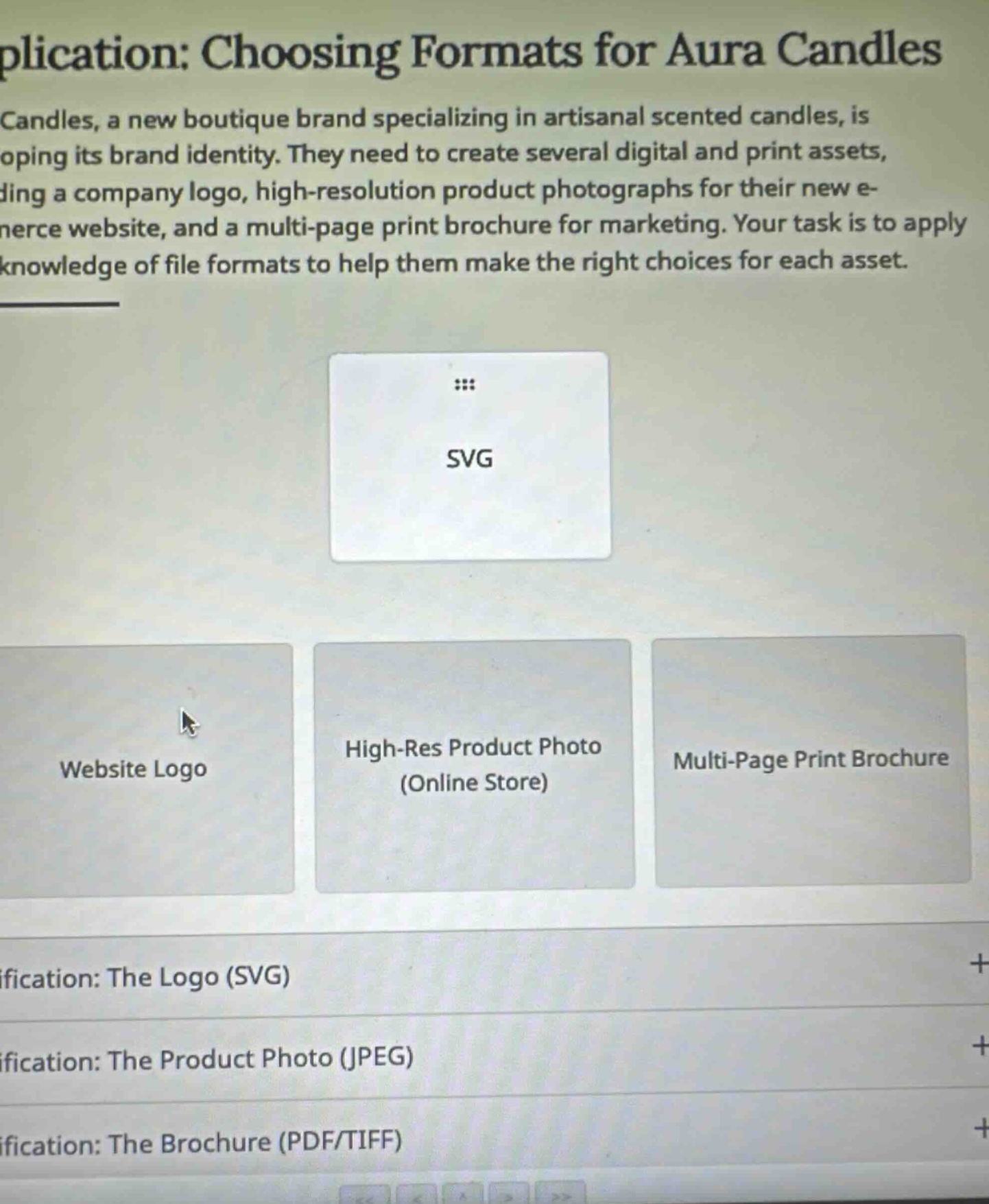
application: choosing formats for aura candles
candles, a new boutique brand specializing in artisanal scented candles, is developing its brand identity. they need to create several digital and print assets, including a company logo, high-resolution product photographs for their new e-commerce website, and a multi-page print brochure for marketing. your task is to apply knowledge of file formats to help them make the right choices for each asset.
svg
website logo
high-res product photo (online store)
multi-page print brochure
justification: the logo (svg)
justification: the product photo (jpeg)
justification: the brochure (pdf/tiff)
🆕 New Concept Discovered: Digital File Formats
Choosing the right file type for web and print.
Step 1: Understand SVG Characteristics
An SVG (Scalable Vector Graphics) file is a vector-based image format. Unlike raster images (like JPEG or PNG) which are made of pixels, vector graphics are made of mathematical paths. This means they can be scaled up or down to any size without losing quality or becoming pixelated. They also have very small file sizes, making them perfect for web use.
Step 2: Match SVG to the Correct Asset
Let's look at the three options provided:
- Website Logo: Logos need to be sharp, scalable to fit different screen sizes (mobile, desktop, retina displays), and load quickly. Because SVG is infinitely scalable and lightweight, it is the industry standard format for website logos.
- High-Res Product Photo (Online Store): Photos contain complex color gradients and details that are best saved in raster formats like JPEG or WebP, not vector formats like SVG.
- Multi-Page Print Brochure: Multi-page print documents are typically saved as PDFs to preserve layout, fonts, and high-resolution print settings.
Therefore, the SVG card should be dragged into the Website Logo slot.

Snap & solve any problem in the app
Get step-by-step solutions on Sovi AI
Photo-based solutions with guided steps
Explore more problems and detailed explanations
Drag the SVG card into the Website Logo box.