QUESTION IMAGE
Question
welcome to advanced zylabs!
this training lab demonstrates some of the primary functionalities within advanced zylabs.
to start, click on the earmarked page icon on the upper left of the zylabs editor to open the files pane, which lists all files within the current workspace. notice that main.cpp is labeled with a padlock. files labeled with this padlock icon are read-only, and thus cannot be edited. main.cpp contains the program of this lab, but the contents of main.cpp need not be understood at this moment.
next, click the plus icon at the top of the files pane to create a new text file. name the new text file hello.txt. within the new text file, enter the following phrase:
hello, world!
note: be sure that all capitalization and punctuation are exactly as shown!
now, click on the green run button above the editor window to run the main.cpp program.
the console window just below the editor window is where program output, if any, will be shown. the console is also where input can be entered, should a program require user input. the main.cpp program is expecting the user to input the name of a file, then the program will output the contents of said file. type the name of the file, hello.txt, in the console window and press enter on your keyboard.
if the output within the console matches the phrase \hello, world!\, the lab is now ready to be submitted. to do so, click on the submit for grading button. three points should be awarded for proper completion of this lab.
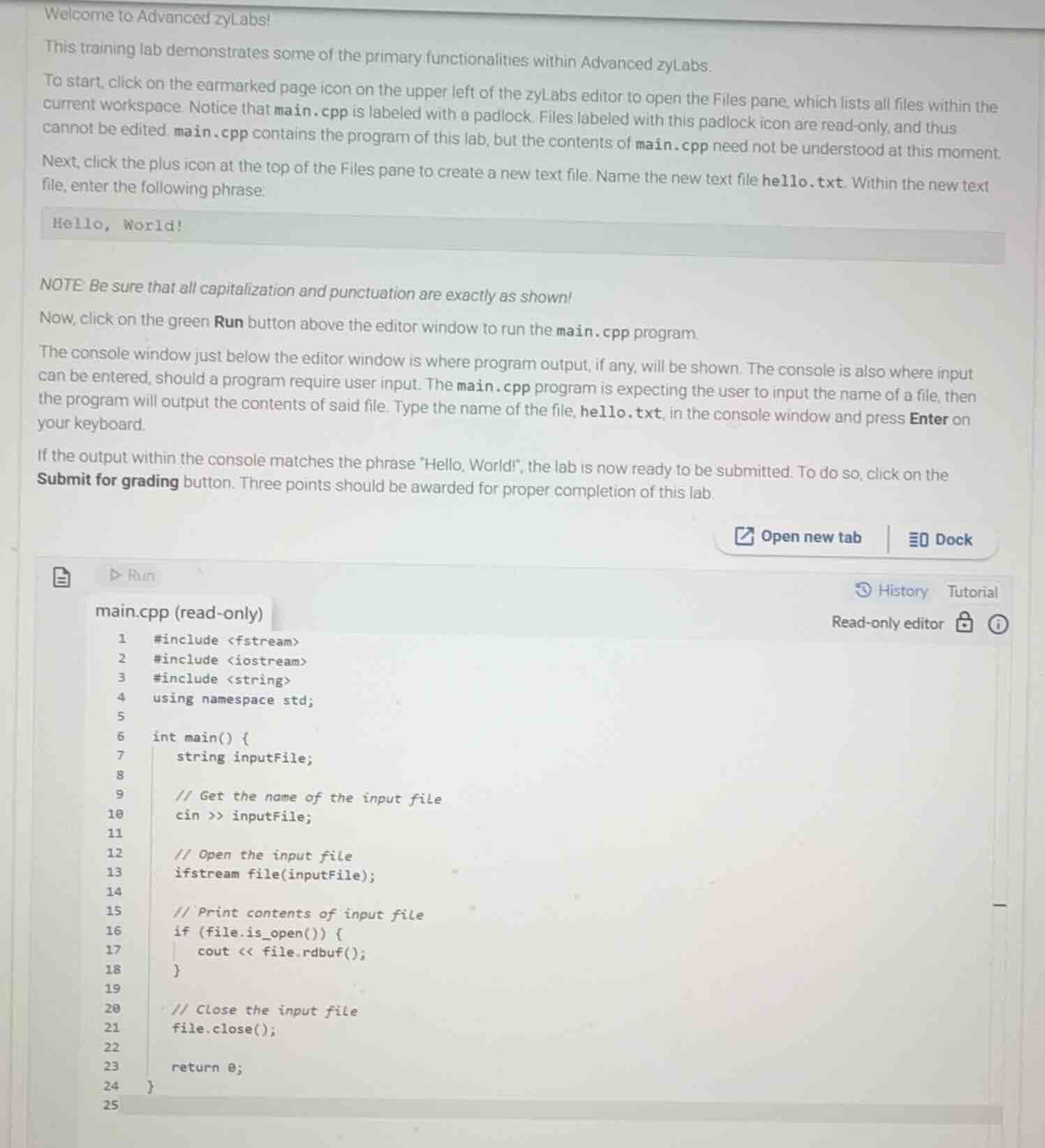
main.cpp (read-only)
1 #include <fstream>
2 #include <iostream>
3 #include <string>
4 using namespace std;
5
6 int main() {
7 string inputfile;
8
9 // get the name of the input file
10 cin >> inputfile;
11
12 // open the input file
13 ifstream file(inputfile);
14
15 // print contents of input file
16 if (file.is_open()) {
17 cout << file.rdbuf();
18 }
19
20 // close the input file
21 file.close();
22
23 return 0;
24 }
Analyze the lab instructions
The text describes a training lab designed to demonstrate the primary functionalities of Advanced zyLabs. It outlines a step-by-step procedure to complete the lab successfully.
Identify the required steps
- Click the file icon on the upper left of the zyLabs editor to open the Files pane.
- Click the plus icon at the top of the Files pane to create a new text file.
- Name the new text file
hello.txt. - Inside
hello.txt, enter the exact phrase:Hello, World!(paying close attention to capitalization and punctuation). - Click the green Run button to execute the
main.cppprogram. - In the console window below the editor, type the name of the file,
hello.txt, and press Enter. - Verify that the output matches
Hello, World!. - Click the Submit for grading button to receive three points.
Summarize the objective
The objective of this introductory lab is to familiarize the user with creating files, running programs, providing console input, and submitting assignments within the Advanced zyLabs environment.

Snap & solve any problem in the app
Get step-by-step solutions on Sovi AI
Photo-based solutions with guided steps
Explore more problems and detailed explanations
To complete this introductory zyLab training exercise, follow these steps:
- Create the file: Click the file icon in the top-left corner of the editor to open the Files pane. Click the + (plus) icon, name the new file
hello.txt, and press enter. - Add content: Open
hello.txtand type the following text exactly as shown (including capitalization and punctuation):
Hello, World!- Run the program: Click the green Run button.
- Provide input: In the console window that appears below the editor, type
hello.txtand press Enter. The program will read your file and output:
Hello, World!- Submit: Click the Submit for grading button to submit your work and receive the 3 points.