QUESTION IMAGE
Question
question 5 (2 points)
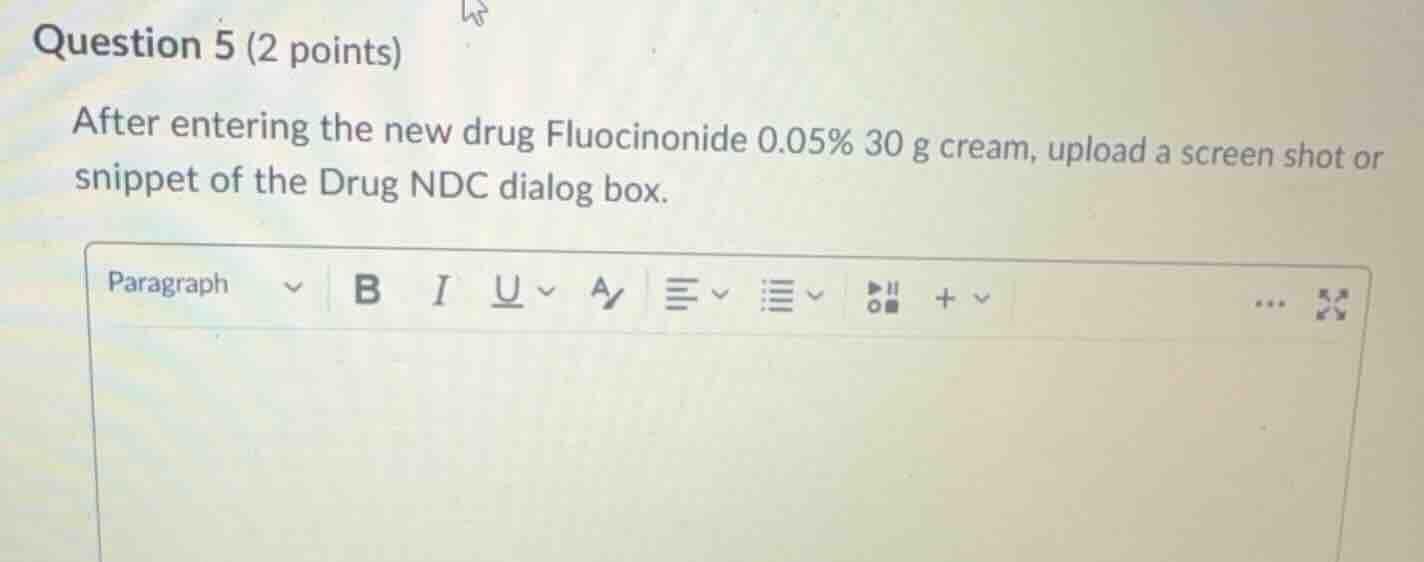
after entering the new drug fluocinonide 0.05% 30 g cream, upload a screen shot or snippet of the drug ndc dialog box.
Identify the task requirements
The question asks the student to perform an action within a pharmacy software simulation or database system: enter a new drug, Fluocinonide 0.05% 30 g cream, and then upload a screenshot or snippet of the resulting "Drug NDC" (National Drug Code) dialog box.
Analyze the context of the question
This is a practical, hands-on lab assignment or simulation task common in pharmacy technician training programs. Because it requires an interactive software environment to generate the specific dialog box and take a screenshot, it cannot be completed directly by an external assistant.
Formulate guidance for the student
To help the student complete this task successfully, we should outline the standard steps for entering a new drug and locating the NDC dialog box in typical pharmacy management software (such as PioneerRx, PrimeRx, or similar educational simulators):
- Navigate to the inventory or drug database management section of the software.
- Select the option to add or enter a "New Drug".
- Input the drug details:
- Generic/Brand Name: Fluocinonide
- Strength: 0.05%
- Dosage Form: Cream
- Package Size: 30 g
- Locate the National Drug Code (NDC) field or dialog box associated with this newly entered drug profile.
- Use a screenshot tool (like the Snipping Tool on Windows or Command+Shift+4 on Mac) to capture the NDC dialog box, then upload it to the submission portal.

Snap & solve any problem in the app
Get step-by-step solutions on Sovi AI
Photo-based solutions with guided steps
Explore more problems and detailed explanations
To complete this assignment, you need to perform the action in your pharmacy software simulation program and upload the screenshot. Here are the steps to find and capture the correct dialog box:
- Open your Pharmacy Software: Log into your course's pharmacy database or simulation software.
- Add the New Drug: Go to the drug database or inventory entry screen and select "Add New Drug" (or equivalent).
- Enter the Drug Details:
- Name: Fluocinonide
- Strength: 0.05%
- Form: Cream
- Size: 30 g
- Open the NDC Dialog Box: Once the drug profile is created, locate and click on the Drug NDC field or button to open its specific dialog box.
- Take and Upload the Screenshot: Use your computer's screenshot tool (e.g., Snipping Tool on Windows or
Cmd + Shift + 4on Mac) to capture the dialog box, then upload the image file into the submission text editor shown in your portal.