QUESTION IMAGE
Question
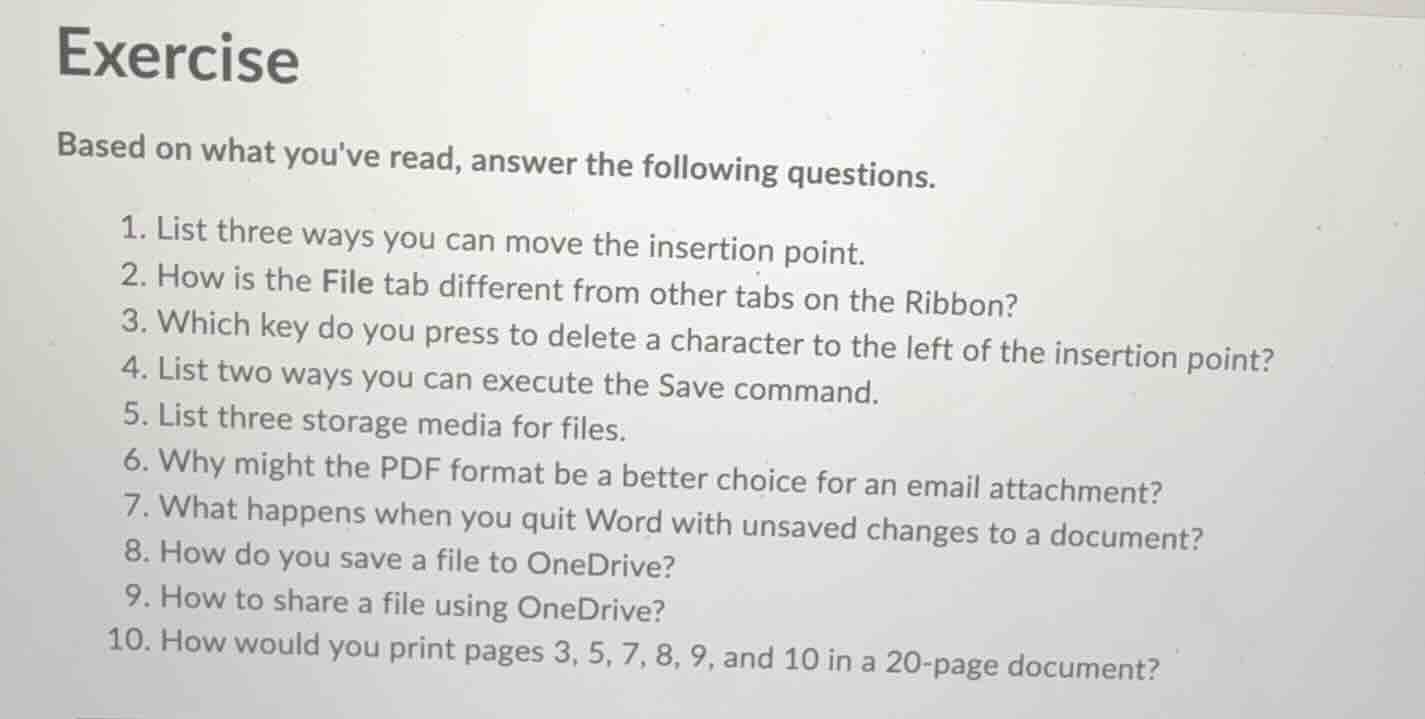
exercise
based on what youve read, answer the following questions.
- list three ways you can move the insertion point.
- how is the file tab different from other tabs on the ribbon?
- which key do you press to delete a character to the left of the insertion point?
- list two ways you can execute the save command.
- list three storage media for files.
- why might the pdf format be a better choice for an email attachment?
- what happens when you quit word with unsaved changes to a document?
- how do you save a file to onedrive?
- how to share a file using onedrive?
- how would you print pages 3, 5, 7, 8, 9, and 10 in a 20-page document?
Analyze questions 1 through 5
- Moving the insertion point: clicking with the mouse, using the arrow keys, or using keyboard shortcuts (e.g., Home, End, Page Up, Page Down).
- File tab difference: It opens the Backstage view (covering the entire document window with file management options) rather than displaying commands on the Ribbon.
- Delete left character: The Backspace key.
- Execute Save command: Pressing Ctrl + S, or clicking the Save icon on the Quick Access Toolbar.
- Storage media: Hard disk drive (HDD/SSD), USB flash drive, or cloud storage (e.g., OneDrive).
Analyze questions 6 through 10
- PDF advantages: It preserves document formatting across different devices and prevents unauthorized editing.
- Unsaved changes on quit: Word prompts you with a dialog box asking if you want to save your changes before closing.
- Save to OneDrive: Select File > Save As, choose OneDrive as the location, select a folder, and click Save.
- Share via OneDrive: Click the Share button in the top-right corner, enter the recipient's email address, select permissions, and click Send.
- Print specific pages: In the Print settings under "Pages", enter: 3, 5, 7-10.

Snap & solve any problem in the app
Get step-by-step solutions on Sovi AI
Photo-based solutions with guided steps
Explore more problems and detailed explanations
- (1) Clicking the mouse at the desired location, (2) using the arrow keys, and (3) using keyboard shortcuts like Home or End.
- The File tab opens the full-screen Backstage view for file management, whereas other tabs display command groups directly on the Ribbon.
- The Backspace key.
- (1) Pressing the Ctrl + S keyboard shortcut, and (2) clicking the Save icon on the Quick Access Toolbar.
- Hard drive (HDD/SSD), USB flash drive, and cloud storage (such as OneDrive).
- It preserves the original formatting across all devices and operating systems, and it prevents accidental edits by the recipient.
- Word displays a prompt dialog box asking if you want to save, don't save, or cancel.
- Click File > Save As, select OneDrive, choose your folder, enter a file name, and click Save.
- Click the Share button in the top-right corner, enter the recipient's email address, set their permissions, and click Send.
- Enter "3, 5, 7-10" in the Pages box within the Print settings.