QUESTION IMAGE
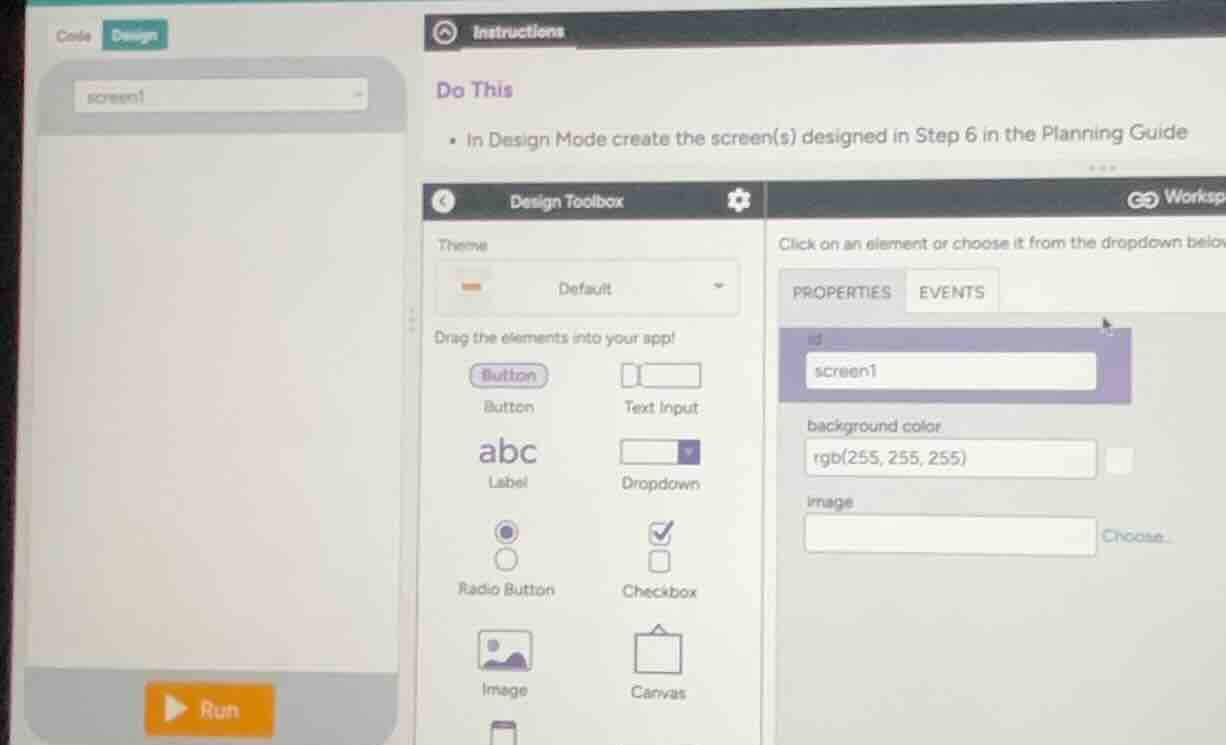
Question
instructions
do this
in design mode create the screen(s) designed in step 6 in the planning guide
Identify the task requirements
The image shows the Code.org App Lab interface in App Design Mode. The instructions state: "In Design Mode create the screen(s) designed in Step 6 in the Planning Guide." Based on your project goals, we need to translate your Quote Maker planning ideas into actual user interface (UI) elements on screen1.
Plan the Quote Maker layout
Using Planning Guide Translation, we want to design a clean, functional layout for a Quote Maker. A standard Quote Maker needs:
- A way to display the quote (a Label).
- A way for the user to input or change text (a Text Input or Text Area).
- Controls to customize the look, such as font size or background color (Dropdowns or Buttons).
- An action button to generate or apply changes (a Button).
Select and place UI elements
Using App Design Mode, we will drag elements from the Design Toolbox onto the screen workspace:
- Label: Drag a label to the top for a title (e.g., "Quote Maker") and another large label in the center to act as the quote display area.
- Text Input: Drag a text input box where users can type their custom quote.
- Dropdown: Drag a dropdown menu to let users select font styles or background themes.
- Button: Drag a button to the bottom labeled "Generate" or "Apply" to trigger the updates.
Configure element properties
To make coding easier later, we must set clear IDs and properties for each element in the Properties tab on the right:
- Title Label: ID
titleLabel, Text: "Quote Maker" - Quote Display Label: ID
quoteDisplay, Text: "Your quote will appear here!" - User Input: ID
quoteInput, Placeholder: "Type your quote here..." - Theme Dropdown: ID
themeDropdown, Options: "Classic", "Modern", "Vibrant" - Action Button: ID
generateButton, Text: "Make Quote"

Snap & solve any problem in the app
Get step-by-step solutions on Sovi AI
Photo-based solutions with guided steps
Explore more problems and detailed explanations
To build the user interface for your Quote Maker app in Code.org App Lab's Design Mode, drag the following elements from the Design Toolbox onto screen1 and configure their properties:
- Title Label
- Element: Label
- ID:
titleLabel - Text: "Quote Maker"
- Placement: Top center of the screen.
- Quote Display Area
- Element: Label (make it large with a visible border or background color)
- ID:
quoteDisplay - Text: "Your quote will appear here!"
- Placement: Center of the screen.
- User Text Input
- Element: Text Input
- ID:
quoteInput - Placeholder: "Type your quote here..."
- Placement: Below the display area.
- Style Customization
- Element: Dropdown
- ID:
themeDropdown - Options: "Classic", "Modern", "Vibrant" (one per line in the options box)
- Placement: Below the text input.
- Action Button
- Element: Button
- ID:
generateButton - Text: "Make Quote"
- Placement: Bottom center of the screen.